Android App Launch Service
Use AppLaunchService to install and launch applications, such as games, eReader applications, or pre-installed applications, on the Android seatback monitor.
AppLaunchService also adds to the PAC Information Bundle, notifies applications when OBBs for applications are mounted, and performs other actions, such as cleaning previous games if too many applications are already installed or pausing game launch if the flight is displaying a Public Announcement (PA).
For more information on the PAC Information Bundle, refer to PAC Information Bundle.
The following are three use cases that require meeting the specific packaging conditions detailed in this guide in order to achieve the following functions:
AppLaunchService can mount OBB for software that is loaded via LMS as a software loadable.
AppLaunchService can preinstall applications that the NBD service remotely pushes as content.
AppLaunchService can allow the VFS installation of applications that the user installs and launches on demand.
Prerequisites
You will need the following to use AppLaunchService:
android_pac_apps — version 02.13.00.00 or higher
pacio — version 03.06.0.01 or higher
Files Required for Each Application
To successfully install an Android application on the Panasonic IFE system, submit the following:
An APK file
A checksum file
A CFG file
OBB files
File Naming Conventions
Use the following naming conventions for Android
application packages. Remember to keep the
[vendor_appName].cfg filename format the same
across versions. The checksum file must be named
[vendor_appName].cksum. The APK name can be
arbitrary but must be specified in the CFG file:
Android application package — APK
Format:
appName_v1.apkExample:
pacgames_pong_v1.apkAndroid application package checksum — CKSUM
This is required for the Panasonic Application Packaging Process.
Format:
vendor_appName.cksumExample:
pacgames_pong.cksumApplication configuration file — CFG
This is required for the Panasonic Application Packaging Process.
Format:
vendor_appName.cfgExample:
pacgames_pong.cfgAndroid expansion files — OBB
This is required if the application has a large amount of external content.
The following are naming standards and scenarios for OBB files:
If an application requires an OBB file, identify what the OBB file belongs to by adding the application prefix.
Example:
pacgames_pong_resources.obbFor generic OBB files used by multiple applications, include the vendor name in the filename to specify the owner of the OBB file.
Example:
pacgames_graphicsassets.obbThe Android OBB naming standard is also supported:
Format:
main|patch.expansionVersion.packageName.obbExample:
main.12345.com.pacgames.games.pong.obb
File Requirements
APK
The application APK must follow the guidelines below to ensure a successful installation, launch, and operation.
Package Format
Format: com.vendor.type.packageName
Example: com.pacgames.games.pong
Android Manifest
The manifest must include the following:
Services in Android 8.1
This is intended for core service applications that need to run in the background.
For a long running background service, the application
must specify the BroadcastReceiver name with
receiver_name.
Once the application receives the broadcast intent, the application must start as a foreground service. For additional information, refer to Foreground Services.
When creating a notification, silence any sounds that would normally play. Silencing sounds also prevents notifications from appearing in the notification bar.
Example:
val notificationIntent = Intent(this, QtActivity::class.java)
val pendingIntent = PendingIntent.getActivity(this, 0, notificationIntent, 0)

if (Build.VERSION.SDK_INT >= Build.VERSION_CODES.O) {
    val notification = Notification.Builder(this, CHANNEL_ID)
        .setContentTitle("forcevideo")
        .setSmallIcon(R.mipmap.ic_launcher)
        .setContentIntent(pendingIntent)
        .setPriority(Notification.PRIORITY_LOW)
        .setOnlyAlertOnce(true)
        .setSound(null, null)
        .build()
    context.startForeground(1, notification)
} else {
    val serviceIntent = Intent(context, YourService::class.java)
    context.startService(serviceIntent)
}
SDK Compatibility in Android 8.1
For Android 8.1 applications, compile the SDK and target SDK using version 27.
For additional information refer to Migrating to Android 8.0.
Example:
android {
    compileSdkVersion 27
    buildToolsVersion "28.0.3"
}
compileOptions {
    sourceCompatibility 1.8
    targetCompatibility 1.8
}
defaultConfig {
    minSdkVersion 19
    targetSdkVersion 27
    versionCode 1
    versionName "1.0"
}
lintOptions {
    abortOnError false
}
CKSUM
Checksum files must use the same name as
the application's APK with the cksum file
type.
CFG
The filename of the CFG file must be unique from the other app config files.
An example of a config file with the required minimum parameters:
The CFG file can contain the following parameters:
apk— RequiredSpecifies the name of the application's APK.
Example:
launchintent— RequiredSpecifies the package name or package name and main activity passed to AppLaunchService to launch the application.
Format:
packageNameorpackageName/activityNameIf the
ActivityNameis not specified, AppLaunchService will query for the launch activity and use that instead.Example with
ActivityNamespecified:json with just package { "launchintent": "com.dtisoft.games.candys" }json with package and activity { "launchintent": "com.dtisoft.games.candys/com.dtisoft.games.candys.ActivitiyName" }obb— RequiredSpecifies the name of all OBBs that are associated with the application, if any. Set to an empty array if the application contains no OBBs.
Example with no OBBs:
Example with one OBB:
Example with multiple OBBs:
pacinfobundle— RequiredSet this parameter to
1if you want LRU and configuration information. Otherwise, set this to0.If set to
1, refer to the PAC Information Bundle for LRU and configuration information.extras— OptionalThese are extra commands that AppLaunchService can send to the application.
Example:
receiver_action,receiver_name— OptionalThis is intended for core applications that need to run in the background.
This allows preinstalled applications to run in the background as a service on bootup.
receiver_name— Represents the BroadcastReceiver that is listening for the action specified inreceiver_action.receiver_action— Represents the name of the action that the application's BroadcastReceiver is listening for.
When an application is installed, it is in an "inactive" state. To start the application for the first time or during bootup, core services send an intent with the receiver action and name indicated in the configuration file. The receiver in your application can then start itself as a background service.
If the application is running on Android 8, BroadcastReceiver can call
startForegroundService().If the application is running on Android 5.1, BroadcastReceiver can call
startService().
Example:
quit— OptionalThis is a command that AppLaunchService sends to quit the application.
Example:
DefaultInputMode— OptionalSpecifies how the D-pad is used in handsets while the app is active.
Example:
Format:
The following values can be set:
Element Description a Pointer modes.
Values:
0— iicore_handset_control_enum_keymap_mode_mouse1— iicore_handset_control_enum_keymap_mode_keyboard2— iicore_handset_control_enum_keymap_mode_point5— iicore_handset_control_enum_keymap_mode_dual_keypad
b Orientation modes.
Values:
3— horizontal4— vertical
c Handset key enable/disable modes.
Values:
6— iicore_handset_control_enum_keymap_mode_enable_key_to_mouse7— iicore_handset_control_enum_keymap_mode_disable_key_to_mouse
d Touchpad modes.
Values:
8— disable touchpad mouse9— enable touchpad mouse
e Next handset mode.
Values:
25— disable both sides of the Next handset26— disable the game side of the Next handset27— disable the non game side of the Next handset28— enable both sides of the Next handset
f Acceleration of the mouse mode pointer. g Initial speed of the mouse mode pointer. h Max speed of the mouse mode pointer in pixels per second. i Enable or disable touch screen state.
Values:
0— enable1— disable
j Specify remote touch screen mode.
Values:
0— Touch screen: Requires absolute coordinates.1— Touchpad: Acts similar to a trackpad.2— Dual mode: Acts similar to a trackpad except when multiple fingers are interacting with the touch screen.3— D-pad mode: Recognizes up, down, left and right key events, depending on the swipe gesture.
OBB
Android Expansion files (OBB) are optional unless an Android application package size exceeds 100 MB. The default OBB file size is 2 GB.
An APK should package extra content in a main file and a patch OBB file. If more expansion files are needed, vendors can request support for additional OBB files.
Main OBB files are recommended for applications that do not update assets frequently.
Patch OBB files are recommended for applications with frequent updates.
Assign OBBs with the permission 666. OBBs
must always be placed in the
apps directory through an NBD content push.
Auto-Link OBBs
To auto-link OBBs on bootup, you must
register the OBB with a cd_apk tag and storage
to client tag to receive a notification from
PAC IO that the OBB is available; the OBB you must also
place the OBB in /tmp/pluginshare/nbd/vfs/apps.
This will enable ApplaunchService to be alerted to the
availability of the OBB for app installation.
For expansion file handling in applications, refer to the APK Expansion Files guide.
OBB Listener
This is for preinstalled applications that contain OBBs and are launched on bootup.
When an application is unable to mount, it is recommend to incorporate retry logic that triggers at regular intervals to retry mounting, such as every ten seconds. Once OBBs are linked to the application, AppLaunchService will send a broadcast intent with the following values:
action:
"aero.panasonic.intent.action.OBB_LINKED"extra:
"package_name", package name
The application can also listen for this broadcast intent when remounting OBBs.
Utilizing Specific App Launching Functions
Use NBD to deploy application files to the seatback using one of the following functional approaches:
To have a quicker and uniform application launch time, use NBD to install the application on bootup.
To have a shorter seatback bootup, use NBD to install the application when a user selects the application to launch.
Install an Application During Bootup Using NBD
Installing an application on bootup results in shorter application launch times. However, this approach increases the overall boot duration for AppLaunchService and requires careful management of system resources. Installing too many applications during bootup can lead to undesirable behavior, such as previously installed applications being uninstalled to make room for later application installations.
To install an application during seatback bootup:
Register the APK, the checksum, the CFG, and the OBB, if available, with NBD. These must all have the
cd_apktag and storage set toclient.In the
/tmp/pluginshare/nbd/vfs/install_appsdirectory, push only the APK, CFG, and checksum files. Do not include any OBB files.All required OBBs must be pushed to
/tmp/pluginshare/nbd/vfs/appswith thecd_apktag and storage set toclient.
To ensure an application gets preinstalled or is able to
have its content updated during a flight, you must
register all relevant files with the cd_apk tag
and storage to client. This enables
AppLaunchService to get information through PAC IO messages
to process the pushed NBD files accordingly.
Install and Launch an Application On Demand
All files, which include the APK, the checksum, the CFG,
and OBBs, if available, must be pushed to
/tmp/pluginshare/nbd/vfs/apps.
Manage VFS Applications
Install and launch Virtual File System (VFS) applications installed on the system with VfsAppManager. The interactive does not need to manually uninstall applications.
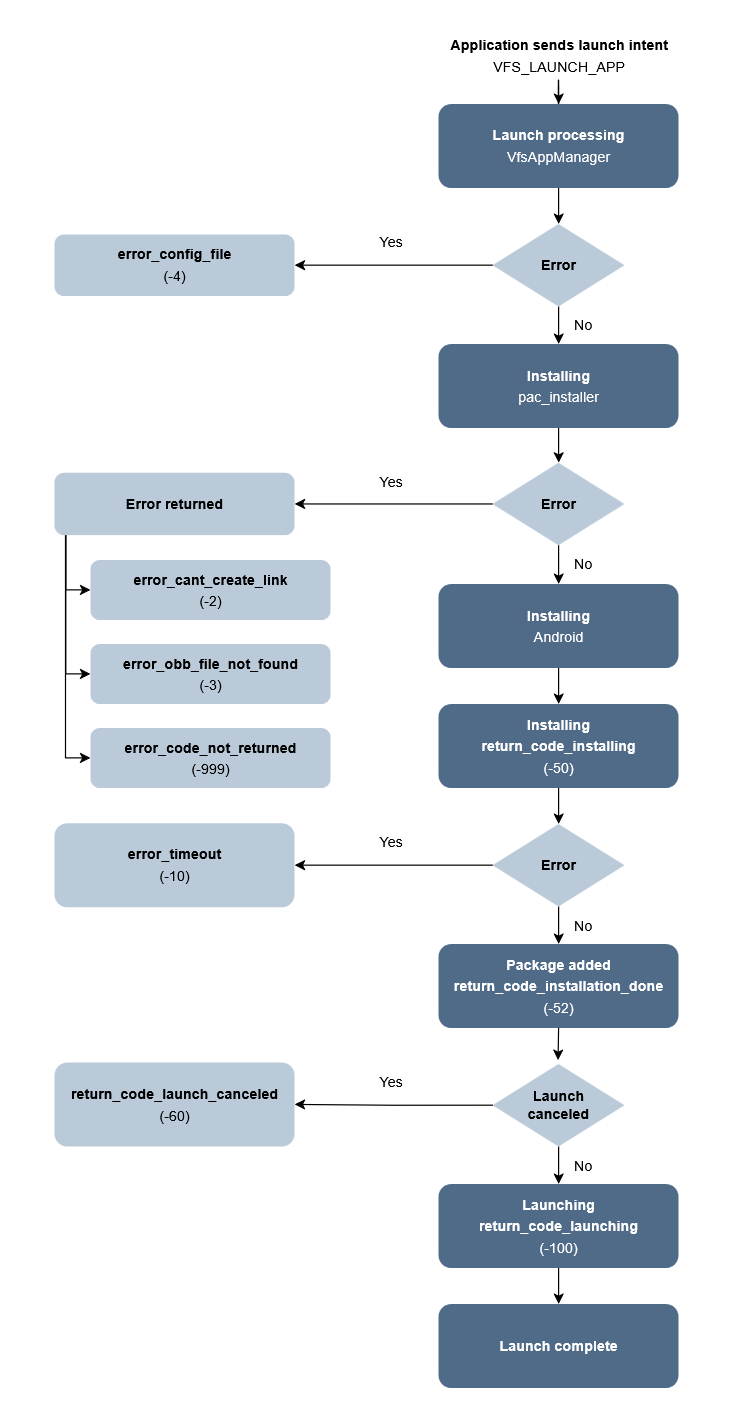
The following diagram details the process of launching an application with VfsAppManager.
Install
You can install single or multiple applications without launching the applications. You can also directly launch applications without installing beforehand because launching automatically installs the application.
If a VFS application is already installed, continue with launching the application.
Install Single Application
To install a single application, create an intent as follows:
action:
"aero.panasonic.intent.action.VFS_LAUNCH_APP"component:
"aero.panasonic.applaunchservice/aero.panasonic.applaunchservice.VfsLaunchAppReceiver"extra:
"launch_app", root CFG filenameExample of a root CFG filename:
dtigames_minepatrextra:
"install_only","true"extra:
"queue_size", integer valueThis is optional.
When installing or launching an application, you can optionally set the
queue_sizeextra parameter, which specifies the maximum number of installed VFS applications allowed.If
queue_sizeis specified and the number of installed VFS applications is equal toqueue_size, then VfsAppManager will uninstall all VFS applications first before installing or launching a new application.If
queue_sizeis not specified, its value will be set to-1by default. This means VfsAppManager will install the application without verifying if other VFS applications are installed.
Install Multiple Applications
To install multiple applications at once, create an intent as follows:
action:
"aero.panasonic.intent.action.VFS_INSTALL_APP"component:
"aero.panasonic.applaunchservice/aero.panasonic.applaunchservice.VfsLaunchAppReceiver"extra:
"install_apps", ArrayList of applicationsUse
putStringArrayListExtrawith the ArrayList.extra:
"queue_size", integer valueThis is optional.
Launch
Launch Application
Create an intent as follows:
action:
"aero.panasonic.intent.action.VFS_LAUNCH_APP"component:
"aero.panasonic.applaunchservice/aero.panasonic.applaunchservice.VfsLaunchAppReceiver"extra:
"launch_app", root CFG filenameExample of a root CFG filename:
dtigames_minepatrextra:
"queue_size", integer valueThis is optional.
extra:
"extras"This is a bundle with any additional parameters to pass to VfsAppManager.
Example:
val intent = Intent("aero.panasonic.intent.action.VFS_LAUNCH_APP").apply {
    component = ComponentName(“aero.panasonic.applaunchservice", "aero.panasonic.applaunchservice.VfsLaunchAppReceiver”)
    putExtra(launch_app", appName)
    addFlags(Intent.FLAG_RECEIVER_FOREGROUND)
}
Specifying the
Intent.FLAG_RECEIVER_FOREGROUND will enable an
application to launch more quickly.
Launch Using Custom Launch Intent
You can launch applications specified from your own
launch intent Specify the class name and add the
Intent.FLAG_RECEIVER_FOREGROUND flag. This may
allow an application to launch more quickly.
Example:
val intent = Intent("aero.panasonic.intent.action.LAUNCH_APP").apply {
    component = ComponentName(“aero.panasonic.applaunchservice", "aero.panasonic.applaunchservice.AppLaunchReceiver")
    putExtra(launch_intent", appIntent); // appIntent is the intent to launch your application.
    addFlags(Intent.FLAG_RECEIVER_FOREGROUND)
}
sendBroadcast(intent);
Get Status Updates
To receive status updates, create an intent as follows:
action:
"aero.panasonic.intent.action.VFS_LAUNCH_APP_STATUS"package:
"aero.panasonic.applaunchservice"extra:
"return_code", integer valueCreate
return_codevariables and set to the following integer values:return_codevariableSet to ERROR_CANT_CREATE_LINK-2 ERROR_OBB_FILE_NOT_FOUND-3 ERROR_CONFIG_FILE-4 ERROR_TIMEOUT-10 ERROR_CODE_NOT_RETURNED-999 RETURN_CODE_INSTALLING-50 ERROR_NO_LAUNCH_INTENT_FOR_PACKAGE-51 RETURN_CODE_INSTALLATION_DONE-52 RETURN_CODE_LAUNCH_CANCELED-60 RETURN_CODE_LAUNCHING-100
package_name and launch_app
will be returned as extras with the package name and
application's root CFG filename for the following status
return_code variables:
RETURN_CODE_INSTALLINGRETURN_CODE_INSTALLATION_DONERETURN_CODE_LAUNCHINGRETURN_CODE_LAUNCH_CANCELED
Uninstall
You can uninstall a single application or all applications at the same time.
When the application is uninstalled, listen for the
android.intent.action.PACKAGE_REMOVED action,
which signals the action for Android package removal.
Uninstall Single Application
To uninstall a single application, create an intent as follows:
action:
"aero.panasonic.intent.action.VFS_UNINSTALL"component:
"aero.panasonic.applaunchservice/aero.panasonic.applaunchservice.UninstallReceiver"extra:
"delete_data","true"or"false"This is to indicate if application data should be deleted. By default, this is set to
true.This is optional. By default, this is set to
true.extra:
"uninstall_pkg", package nameor
extra:
"launch_app", root CFG filenameExample of a root CFG filename:
dtigames_tetrisThis is required.
Uninstall All Applications
You can uninstall all VFS applications, such as games. Preinstalled applications are not uninstalled and are located in the following directories:
/tmp/pluginshare/sw_appsThis is for applications to be installed from a software loadable.
/tmp/pluginshare/nbd/vfs/installs_appsThis is for applications to be installed during bootup.
/tmp/pluginshare/nbd/vfs/resource_appsThis is for applications to be installed during bootup but provide data for other applications to use, such as VKB resource data and interactive theming data.
Create an intent as follows:
action:
"aero.panasonic.intent.action.VFS_REMOVE_ALL"component:
"aero.panasonic.applaunchservice/aero.panasonic.applaunchservice.UninstallReceiver"flag:
"Intent.FLAG_INCLUDE_STOPPED_PACKAGES"
val intent = Intent("aero.panasonic.intent.action.VFS_REMOVE_ALL").apply {
    component = ComponentName(“aero.panasonic.applaunchservice", "aero.panasonic.applaunchservice.UninstallReceiver")
    addFlags(Intent.FLAG_RECEIVER_FOREGROUND)
    addFlags(Intent.FLAG_INCLUDE_STOPPED_PACKAGES)
}
sendBroadcast(intent);
Clear User Data
You can clear user data from an application. Android will force the application to stop after data is cleared.
Create an intent as follows:
action:
"aero.panasonic.intent.action.CLEAR_USER_DATA"component:
"aero.panasonic.applaunchservice/aero.panasonic.applaunchservice.UninstallReceiver"extra:
"package_list", StringArrayList of package names to clear user data
Cancel Pending Launch
You can stop an application from launching if it's in the process of being installed but has not been launched.
An example of this situation is when a pending application is trying to launch but must be canceled from launching due to a closed flight event.
Create an intent as follows:
action:
"aero.panasonic.intent.action.VFS_CANCEL_LAUNCH_APP"package:
“aero.panasonic.applaunchservice”